Embarrassing, but true! And now fixed.
/quiet broken; /quiet does not
provide desired functionality.
A little history is in order before we discuss the details of this bug. UltraMap.exe is written in VB6, primarily to support older platforms (all the way back to Win95!). Unfortunately, VB6 cannot create a true “command-line†console application; VB6 always generates a Windows application. This fact makes it impossible (for a practical purposes, anyway) for UltraMap to act as a good console application (such as writing error messages to stderr, or returning an error code back to the command line).
So, given that UltraMap cannot provide the exact desired behavior, a bunch of switches have replaced/quiet:(For convenience,
/quietNo longer supported, but silently ignored. /verboseNo longer supported, but silently ignored. /logerrorsfilenameAppend any error messages to the given file. File names are relative to the current directory. /errorgui:valueControls how UltraMap display error dialogs:
2.5Displays an error dialog for only 2.5 seconds before automatically continuing (i.e. dismissing the dialog). Any value between 0 and 60, inclusive can be used. autoDisplay an error dialog until the user closes. This is the default behavior, and is the same as not using the /errorguiswitch at all.neverCompletely supresses display any error dialogs. This is the same as specifying /errorgui:0.WARNING: Using this switch might completely hide a problem UltraMap is having in communicating with your UltraStiks. Use with caution!/showfeedbackKind of like the old /verboseswitch: it causes UltraMap to display the progress of programming the UltraStiks. Note that this usually happens so fast that all you see is a flash./quietand/verboseare simply ignored, rather than causing an error.)
These switches can be combined to make UltraMap rather friendly in command-line environments. For example:UltraMap MyFile.ugc /logerrors Errors.log /errorgui:nonecould be used in the context of a batch file. The batch file would first deleteErrors.logif it existed, would run UltraMap, followed by looking for the existence ofErrors.log. If this file was created, then UltraMap encountered an error, and the log file contains text describing of the error encountered. The batch file could take appropriate steps, such as piping the contents of this file to stderr, or aborting the launch of some game.
Note, however, that/errorgui:noneis dangerous; things might mysteriously stop working correctly, and it can be difficult to notice that UltraMap is trying to tell you why. For that reason, we strongly suggest using/errorgui:2.5or the like, instead. This gives the user 2.5 seconds to notice that a problem actually occurred. Combined with/logerrors, this can provide the best of both worlds, GUI and command-line.
UltraStick.exe
to UltraMap.exe.
The “external†name has already beenUltraMap.exefor a while, however, internallyUltraStick.exewas still being used. The main consequence of this change is that Registry settings for this program are now moved to:
HKEY_CURRENT_USER\Software\VB and VBA Program Settings\UltraMap,
and thus the location of the main window will be (temporarily) forgotten.
Also, the name of the “.ini†file has changed fromUltraStik.initoUltraMap.ini. Upon running, UltraMap will automatically make a copy of the “.ini†file. See the note about Windows Vista support for more information.
The keymap and joystick squares are now also labeled. Finally, the GUI of the joystick square is more consistent: it now always sports a frame, whose color changes to indicate when the UltraStik is not plugged in. The joystick square turns red when an UltraStik is expected to be plugged in, but is not.
An detail of this feature is that UltraMap tracks which map was last downloaded to each UltraStik, storing this information in the Registry. Please be aware that this information may be wrong after a power cycle (unless
/flash is always used on the command-line, or unless a shortcut to UltraMap is placed in the Startup folder).
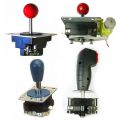
UltraStiks are wired such that Windows sees them as a game controller (i.e. analog joystick) via the USB connection to the computer (unless the Mouse Pointer map is loaded, in which case Windows sees the UltraStik as a mouse). In addition, users can optionally wire an UltraStik to a WinIPAC. In this case, Windows sees the analog joystick and also receives key presses via the WinIPAC. Prior to version 1.0.19, both the analog joystick and the WinIPAC key presses directly reflected the map downloaded to the UltraStik. Version 1.0.19 introduces a new mode, via the Keep Joystick Analog check box, where the analog joystick does not reflect the downloaded map; only key presses genarated via the WinIPAC connection do.
This new mode can be a useful default. For example, loading an 8-way map with the "Keep Joystick Analog" means that most games can work via the 8-way key presses being generated via the WinIPAC (e.g. Pac-Man-like games, Robotron, etc.), while games requiring something different could be configured to use the UltraStiks as game controllers instead (e.g. configure Sinistar to ignore the keyboard, and to use the UltraStik as an analog joystick game controller). With a little game configuring, a rather wide range of games can be supported without ever reprogramming the UltraStik!
Vista does not really like applications to store any modifiable data in theProgram Files, which is where UltraMap used to store its.inifile. This file is now stored in the application data directory. The exact location depends upon which OS you run (i.e. Win9x vs. Win2k vs. WinXP vs. WinVista). For WinXP, this location is usually:
C:\Documents and Settings\<i>UserName</i>\Application Data\Ultimarc\UltraMap.ini.
To facilitate finding the.inifile, a new tab has been added to the Tools > Options dialog. Pressing the button will launch an editor on the.inifile; the editor used depends upon the file association settings for .ini files.
Users who wish to experiment with custom restrictor settings can do so by directly editing the.inifile, by editing one or more of the UltraStikXRestrictor lines. These lines have the following syntax:
UltraStikXRestrictor=Value
It is worth commenting that earlier versions of UltraMap also fully support
X Can be one of: 1,2,3, or4.Value Can be one of:
Custom:valueA custom restrictor setting; value is a scaling factor applied when the UltraStik reads the joystick’s location. Value must be between 0 and 255, inclusive; although most useful values are between 4 and 20. NOTE: Using extreme values, or values which do not correspond to the installed restrictor will give very unpredictable results!Custom:value,nameSame as Custom:value, except that name is used in the Options dialog.NoneNo Restrictor. Same effect as Custom:16. This value can be set via the Options dialog; there is no need to edit the.inifile.4/84-way or 8-way Restrictor. Same effect as Custom:9. This value can be set via the Options dialog; there is no need to edit the.inifile.CircularCircular Restrictor. Same effect as Custom:9. This value can be set via the Options dialog; there is no need to edit the.inifile.Custom:value. Earlier versions can also read .ini files containingCustom:value,name lines, but will not make use of the name field.
/flash switch for command-line.
Prior to this version, each time an UltraStik was programmed, the new program was written to flash memory (i.e. retained even after a power cycle). With this version, the joystick is only flash programmed when either the GUI is used to download to an UltraStik, or when /flash is present on the command-line.
© 2024 Ultimarc